
Quick answer
To set up a Google Business Profile, go to business.google.com, sign in with your Google account, and enter your business name, category, location (or service areas), phone number and website. Then verify your business, usually by video, phone, email or post. Verification review can take up to 5 business days. Finally, add your hours, description, services and photos. It is completely free.
When someone searches “web designer near me”, “dentist in Virar” or “cake shop open now”, Google shows a map with three businesses at the top. Those businesses have a Google Business Profile. If you do not have one, you are missing customers who are already looking for exactly what you sell.
The good news: a Google Business Profile is free, and you can set it up in about 30 minutes. This guide walks you through every screen, step by step, in simple language.
What you need before you start
Keep these ready so you can finish in one go:
- A Google account you will keep using for the business. A separate business Gmail is best, so the profile is not tied to your personal email.
- Your exact business name, as it appears on your signboard, bills or visiting card.
- Your address (if customers visit you) or the areas you serve (if you go to customers or work online).
- A business phone number you can answer, and your website if you have one.
- Opening hours, a short description of your business, and a few good photos.
How to set up Google Business Profile in 8 steps
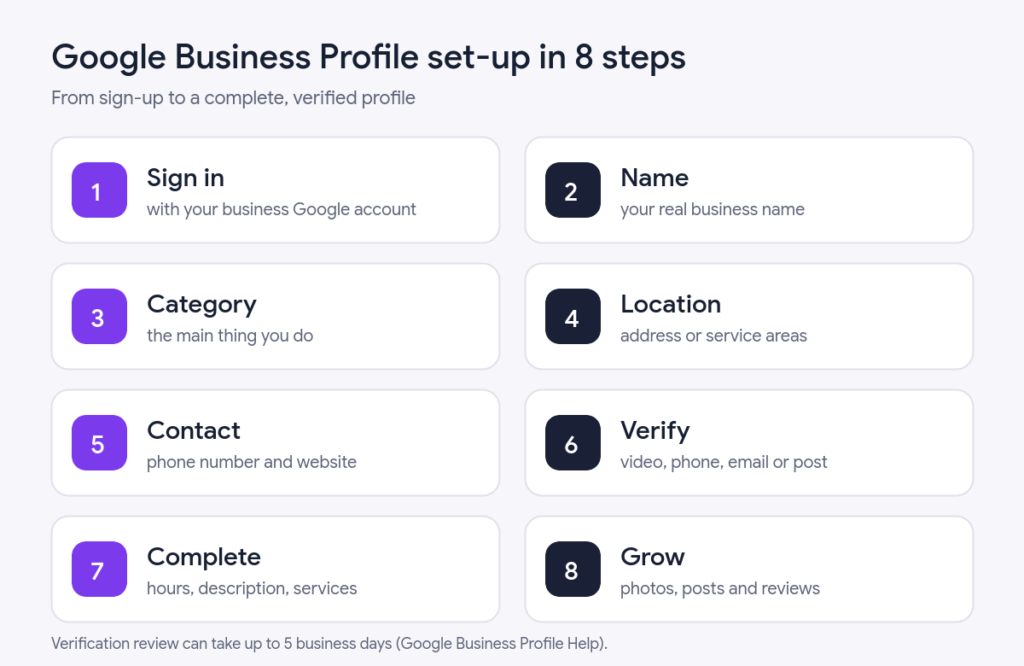
Step 1: Sign in and check if your business already exists
Go to business.google.com and click Manage now (or Get started). Sign in with your business Google account.
Before you create anything, search for your business name on Google Maps. Sometimes Google or a customer has already added it. If it appears while you type your name, claim that listing instead of creating a new one. Two profiles for the same business confuse Google and can get your profile suspended.
Step 2: Enter your real business name
Type your business name exactly as customers see it in real life, for example “Sharma Dental Clinic”. Do not add extra words like “Best Dentist in Virar” or your city. Google’s rules do not allow keywords in the name, and profiles that do this can be suspended.
Step 3: Choose the right business category
Your primary category is one of the most important choices you make. Start typing and pick the most specific option that describes your main business, such as “Dentist” instead of “Health”, or “Website designer” instead of “Consultant”. You can add a few additional categories later for other services you offer.
Step 4: Add your location or service areas
Google asks whether you have a location customers can visit, like a shop or office.
- Yes: enter your full address and check the pin on the map is exactly on your building.
- No (you visit customers, deliver, or work from home): choose No and add the cities or PIN codes you serve. Google allows up to 20 service areas and recommends staying within about two hours’ drive of your base. Your home address stays hidden from the public.
Tip: Work from home? Google says that if customers do not visit your address, you must hide it. Set yourself up as a service-area business and your profile still appears in searches across the areas you serve.
Step 5: Add your phone number and website
Add a phone number you actually answer during business hours, because customers will tap “Call” straight from Google. Add your website address too. If you do not have a website yet, you can skip this and add it later. (Wondering what a website costs? See our guide on how much a website costs in India.)
Step 6: Verify your business
Verification proves to Google that you really run this business. Until you verify, you cannot reply to reviews, add posts or edit many details. Google decides which methods you can use. The common ones are:
| Method | How it works |
|---|---|
| Video recording | Record one continuous video showing your location, your business and proof that you manage it. |
| Live video call | A short video call with a Google support person during your business hours. |
| Phone or text | Google sends a code to your business phone number. |
| Google sends a code or link to your email address. | |
| Postcard | Google posts a code to your address. Most arrive within 14 days. |
For video verification, Google asks you to show:
- Your location: your signboard, the street, or nearby shops.
- Your business: products, tools, branded items or equipment you use to serve customers.
- Proof you manage it: for example, unlocking the door, the billing counter, a staff-only area, or non-sensitive business documents.
Google says verification reviews take up to 5 business days. While you wait, do not change your business name, address or category, as this can restart the process.
Beware of scams: Google will never call you asking for your verification code, and never charges money to create or verify a profile. Do not share the code with anyone.
Step 7: Complete every section of your profile
A complete profile gets more calls and visits. Fill in:
- Opening hours, plus special hours for festivals and holidays, so customers never arrive to a closed shutter.
- Business description (up to 750 characters): what you do, who you serve and what makes you different. Write it naturally; no links or offers.
- Services or products, with short descriptions and prices where possible.
- Attributes such as “wheelchair accessible”, “online appointments” or “women-owned”, where they apply.
- Opening date of your business.
Step 8: Add photos
Profiles with real photos look trustworthy. Add your logo, a cover photo, the outside of your shop or office (so people can find it), the inside, your team, and examples of your work or products. Use clear, bright photos taken on your phone; avoid stock images. Add a few new photos every month.
Common Google Business Profile mistakes to avoid
| Mistake | Do this instead |
|---|---|
| Creating a second profile for the same business | Claim or fix the existing one |
| Adding keywords or the city to the business name | Use your real-world name only |
| Showing a home address when customers do not visit | Hide the address and set service areas |
| Choosing a broad category | Pick the most specific primary category |
| Leaving hours or phone out of date | Update them whenever they change |
| Ignoring reviews | Reply to every review, good or bad |
What to do after your profile is live
Setting up your Google Business Profile is the first step. These habits help you appear higher on Google Maps over time:
- Ask happy customers for reviews. In your profile, use the “Ask for reviews” or “Share profile” option to get a short link, and send it on WhatsApp after a good experience. Never pay for or write fake reviews.
- Reply to every review within a day or two. Need help with the wording? Prompt 2 in our 10 ChatGPT prompts for small business writes polite replies for you.
- Post updates every week, such as offers, new products, events or festival greetings, using the “Add update” option.
- Keep everything accurate, especially hours, phone number and holiday closures.
- Link your website and your profile to each other, and use the same name, address and phone number everywhere online.
Want to rank higher on Google Maps?
Our Google Business Profile Mastery guide covers set-up, verification, reviews, posts and local SEO in simple steps. Or let DZYVO set up and optimise your profile for you.
Get the guideFrequently asked questions
Is Google Business Profile free?
Yes. Creating, verifying and managing a Google Business Profile is completely free. Be careful of anyone who calls claiming to be Google and asks for payment.
Can I create a Google Business Profile without a shop or office?
Yes. If you visit customers or work from home, set it up as a service-area business, hide your address and list the areas you serve.
How long does verification take?
Google says verification reviews take up to 5 business days, and occasionally longer. Postcard codes usually arrive within 14 days and expire after 30 days.
Can I set up my profile from my phone?
Yes. You can start from business.google.com in your phone’s browser, or add your business from the Google Maps app. Video verification is usually easiest on a phone.
Why is my business not showing on Google Maps?
Common reasons are that the profile is not verified yet, details are incomplete, or the category does not match what people search for. Google also ranks local results by relevance, distance and prominence, so reviews, photos and regular updates help over time.
Conclusion
Learning how to set up a Google Business Profile is one of the best free things you can do for a local business. Take 30 minutes today: sign in, add your real name and category, set your location or service areas, verify, and complete every section. Then keep collecting reviews and posting updates, and more nearby customers will find you on Google.
Sources: Google Business Profile Help: Verify your business on Google and Manage your service area. Steps checked in November 2026; Google sometimes changes the screens and options.